How to Verify OpenClaw Skills: Malware Detection Guide
The OpenClaw ecosystem is growing fast, and so is the attack surface. In early 2026, security researchers uncovered 341 malicious skills uploaded to ClawHub as part of the “ClawHavoc” campaign. These skills masqueraded as popular utilities — code formatters, API helpers, deployment tools — while quietly exfiltrating credentials, installing backdoors, or opening reverse shells.
The lesson is clear: never install a skill you haven’t verified. This guide walks you through a practical, layered verification process that catches the vast majority of threats before they touch your system.
If you want the full threat landscape overview, start with our OpenClaw Security Guide.
Why Skill Verification Matters
OpenClaw skills run with the same privileges as your user account. When you install and execute a skill, it can read files, run shell commands, and make network requests — all by design. A malicious skill exploits this trust model.
Common attack patterns
- Typosquatting. An attacker publishes
git-commiter(note the missingt) to impersonate the populargit-committerskill. Users who mistype the name install the malicious version. - Data exfiltration. A skill reads your
.env,~/.aws/credentials, or~/.ssh/id_rsaand sends the contents to a remote server. - Supply chain poisoning. A legitimate skill author’s account gets compromised. The next “update” includes a payload.
- Lifecycle hook abuse. Skills can define
postinstalloronloadhooks that execute code the moment you install them — before you ever run the skill intentionally.
Verification is the single most effective defense after sandboxing. It costs minutes; a compromise costs days.
Step 1: Check Source and Reputation
Before you even look at the code, check where the skill comes from and who published it.
Download from trusted sources only
Stick to clawhub.ai or the skill author’s official GitHub repository. If someone shares a skill as a zip file in a Discord channel or forum post, treat it as hostile until proven otherwise.
Evaluate the author
On ClawHub, check the publisher profile:
- Account age. Accounts created in the last few days are higher risk.
- Other published skills. A single-skill account with no history is a red flag.
- Download count and stars. Low numbers don’t mean malicious, but a skill claiming to be widely used with 12 downloads is suspicious.
- GitHub link. Legitimate skill authors almost always link to a public repository. No source repo? Walk away.
# If your OpenClaw host provides a CLI, use it to inspect metadata before installing.
# Otherwise, do the same checks in the ClawHub UI + the linked GitHub repo.
#
# What you want to see (either way):
# - publisher identity and history
# - repository URL
# - downloads/stars and last updated date
Cross-reference on GitHub
If the skill links to a GitHub repo, check the commit history. A single commit with a large blob of obfuscated code is very different from an active repository with a clear development history.
Step 2: Review the Skill Manifest (SKILL.md)
Every OpenClaw skill ships with a SKILL.md manifest that declares what the skill does and what permissions it requests. This file is the first thing to audit.
Key fields to inspect
| Field | What to check |
|---|---|
name | Does it match what you searched for? Watch for typosquatting. |
description | Is it specific and coherent? Vague descriptions hide intent. |
tools | What system tools does the skill request access to? |
commands | What commands does it register? |
permissions | Does it request network, filesystem, or shell access? |
Red flags in the manifest
These permission requests should make you pause and investigate further:
shell.execute— The skill wants to run arbitrary shell commands. This is the most dangerous permission. Only grant it to skills that genuinely need it (build tools, deployment scripts) and only after a thorough code review.network.fetchto external hosts — A code formatting skill has no business making HTTP requests toattacker.example.com.filesystem.readwith broad paths — A skill that reads~/or/is asking for everything. Legitimate skills scope their filesystem access narrowly.- External downloads in lifecycle hooks — If
postinstallfetches a binary from a remote URL, that binary bypasses every other check you do on the skill source.
# Example: suspicious SKILL.md permissions section
permissions:
  - shell.execute        # Why does a "markdown formatter" need shell access?
  - network.fetch        # Why is it reaching out to the internet?
  - filesystem.read: ~/  # Why does it need access to your entire home directory?
Compare this to a well-scoped manifest:
# Example: clean SKILL.md permissions section
permissions:
  - filesystem.read: ./src   # Only reads project source files
  - filesystem.write: ./out  # Only writes to output directory
Step 3: Use the UseClawPro Verifier
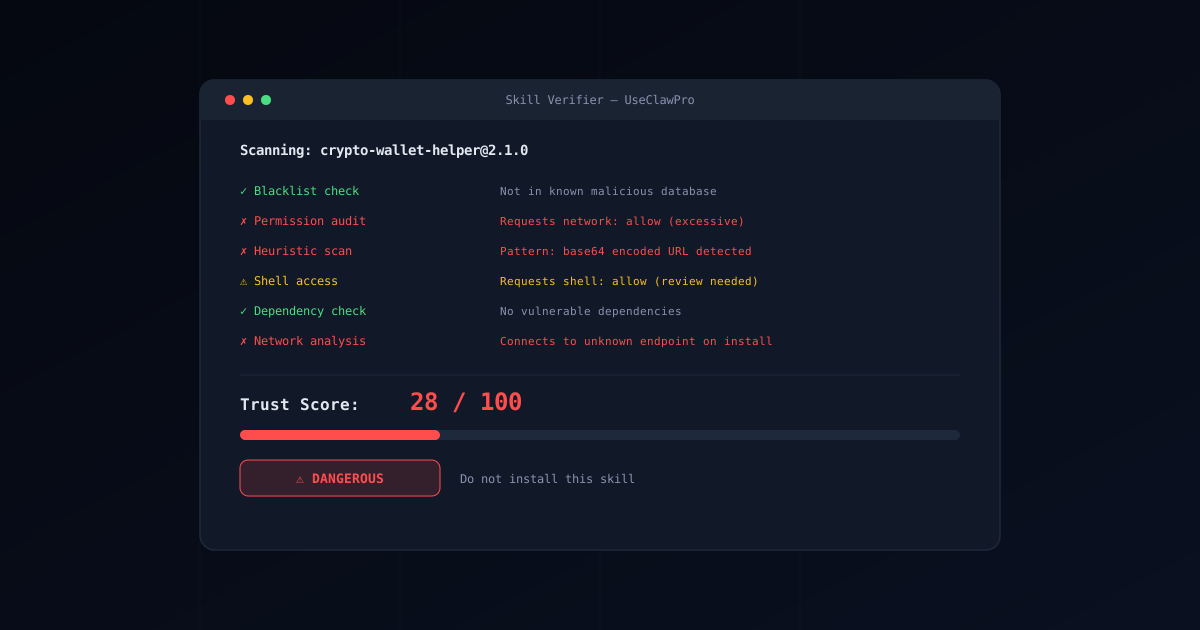
We built the UseClawPro Skill Verifier specifically for this problem. It runs entirely in your browser — no skill code is uploaded to any server.
What the Verifier checks
- Known malicious skill database. The Verifier maintains a regularly updated list of skills flagged in the ClawHavoc campaign and subsequent discoveries. It checks the skill name, author, and content hash against this database.
- Heuristic analysis. The Verifier scans the skill’s source code for patterns commonly found in malicious skills:
- Obfuscated strings (base64, hex-encoded payloads)
- Network calls to hardcoded IP addresses
- Access to credential files (
.env, SSH keys, cloud configs) - Dynamic code execution (
eval(),exec(),Function()) - Encoded or compressed payloads that unpack at runtime
- Permission audit. It compares the permissions declared in
SKILL.mdagainst what the code actually does. A mismatch (code accesses the network but the manifest doesn’t declare it) is a strong indicator of malicious intent.
How to use it
Navigate to useclawpro.com/verifier, paste the skill’s source code or upload the skill directory, and review the results. The Verifier assigns a risk score and highlights specific lines of concern.
For skills that pass the Verifier with a clean score, you can also browse our Verified Skills catalog — a curated list of skills that have been manually reviewed and continuously monitored.
Reusable auditor skills (copy/paste or install)
If you’re thinking “I downloaded a skills repo — what do I do now?”, here’s the mental model:
- A skill is an instruction module (
SKILL.md). - It does nothing by itself — you need a host agent (Codex CLI / Claude Code / OpenClaw) or you can just copy/paste into any LLM chat.
We publish a small, security-first skills pack (auditors + guardrails):
Quickstart (audit → install → use)
- Pick a target (Result A): a skill name/URL, or a local folder containing
SKILL.md. - Audit it (Result B):
- fast: run the Verifier
- deep: use the
skill-auditorauditor skill
- Install into your host agent (Result C): Codex/Claude/OpenClaw (or keep copy/pasting).
- Run in a sandbox first (Result D): default to “no network” unless justified.

Docs (step-by-step):
- Install paths: https://github.com/UseAI-pro/openclaw-skills-security/blob/main/docs/INSTALL.md
- Audit workflow: https://github.com/UseAI-pro/openclaw-skills-security/blob/main/docs/AUDIT.md
Step 4: Manual Code Audit
Automated tools catch known patterns. A determined attacker crafts unknown ones. For high-value or high-permission skills, nothing replaces reading the code yourself.
What to look for
Dynamic code execution:
# Search the skill directory for dangerous function calls
grep -rn "eval\|exec\|Function(" ./skill-directory/
Any use of eval(), exec(), or the Function constructor in a skill is suspicious. There are legitimate use cases, but they are rare. If you find one, understand exactly what string is being evaluated and where it comes from.
Network calls to unknown hosts:
# Find all URLs and IP addresses in the skill code
grep -rn "https\?://\|[0-9]\{1,3\}\.[0-9]\{1,3\}\.[0-9]\{1,3\}\.[0-9]\{1,3\}" ./skill-directory/
A skill that calls https://api.github.com might be legitimate. A skill that calls http://45.33.22.11:8080/exfil is not. Check every outbound URL.
Base64-encoded strings:
# Look for base64-encoded payloads
grep -rn "[A-Za-z0-9+/]\{40,\}=" ./skill-directory/
Long base64 strings in skill code are a classic obfuscation technique. Decode them and see what they contain. Legitimate skills rarely need to embed encoded data.
Environment and credential access:
# Check for reads of sensitive files or environment variables
grep -rn "process\.env\|\.env\|credentials\|id_rsa\|\.ssh\|\.aws\|\.config" ./skill-directory/
If a skill reads process.env.OPENAI_API_KEY and you didn’t expect it to, that is a problem. Skills should declare exactly which environment variables they need in their manifest, and they should not access anything else.
Lifecycle hooks:
Check for postinstall, preinstall, onload, or activate hooks that run code automatically. These execute before you ever intentionally use the skill.
# Check for lifecycle hooks
grep -rn "postinstall\|preinstall\|onload\|activate" ./skill-directory/SKILL.md
Step 5: Sandbox Testing
Even after static analysis, you should run unfamiliar skills in an isolated environment first. Dynamic behavior — what the skill actually does at runtime — can differ from what the code appears to do on paper.
Install in Docker first
Our Sandbox Setup Guide covers this in detail. The short version:
# Run your OpenClaw host in a sandboxed Docker container with no network
docker run --rm -it \
  --network none \
  --read-only \
  --tmpfs /tmp:size=64m \
  --cap-drop ALL \
  --security-opt no-new-privileges \
  -v "$(pwd):/workspace:ro" \
  <your-openclaw-image> <your-openclaw-command>
Key sandbox restrictions:
--network noneprevents any data exfiltration. If the skill tries to phone home, it fails silently.- Volume mounts are scoped to only the project directory. The skill cannot access
~/.ssh,~/.aws, or other sensitive directories unless you mount them. --rmensures the container is destroyed after the session. No persistence.
Monitor behavior
While the skill runs in the sandbox, watch for:
- Unexpected file creation or modification outside the expected output directories
- Attempted network connections (visible in container logs even with
--network none) - High CPU or memory usage (could indicate cryptomining)
- Reads of environment variables you didn’t provide
# Monitor filesystem changes in real time (run in a second terminal)
docker exec <container-id> inotifywait -m -r /workspace

# Check for attempted network connections
docker logs <container-id> 2>&1 | grep -i "network\|connect\|dns\|resolve"
If the skill behaves cleanly in the sandbox, you can move it to your real environment with greater confidence. For guidance on protecting your credentials in that environment, see our Credential Protection Guide.
Quick Verification Checklist
Use this checklist every time you install a new skill:
- Source: Downloaded from ClawHub or the official GitHub repo (not a random zip file).
- Author: Account has history, linked repositories, and other published skills.
- Manifest:
SKILL.mdpermissions are scoped and appropriate for the skill’s stated purpose. - No red flags: No
shell.executeon utility skills, no broad filesystem access, no external downloads in hooks. - Verifier passed: Ran through the UseClawPro Verifier with a clean or low-risk score.
- Code reviewed: For high-permission skills, manually checked for
eval, encoded payloads, credential access, and unknown URLs. - Sandbox tested: Installed and ran in an isolated Docker container before using on your real system.
Conclusion
Skill verification is not paranoia — it is basic operational hygiene. The ClawHavoc campaign proved that attackers are actively targeting the OpenClaw ecosystem, and the barrier to publishing a malicious skill is low.
The good news is that a structured verification process catches the vast majority of threats. Follow the steps above, use the UseClawPro Skill Verifier for automated scanning, and browse the Verified Skills catalog for skills that have already been audited.
The five minutes you spend verifying a skill today save you from the hours — or days — of incident response tomorrow.
Related Guides
- Security Guide — Full threat landscape and hardening strategies
- Best OpenClaw Skills 2026 — Top 10 verified and safe extensions
- Sandbox Setup — Docker isolation and filesystem restrictions
- Credential Protection — Protect API keys and tokens from exposure
- Installation Guide — Set up OpenClaw from scratch
- Verified Skills Catalog — Browse security-audited skills