OpenClaw + Ollama: Run AI Coding Agents Locally
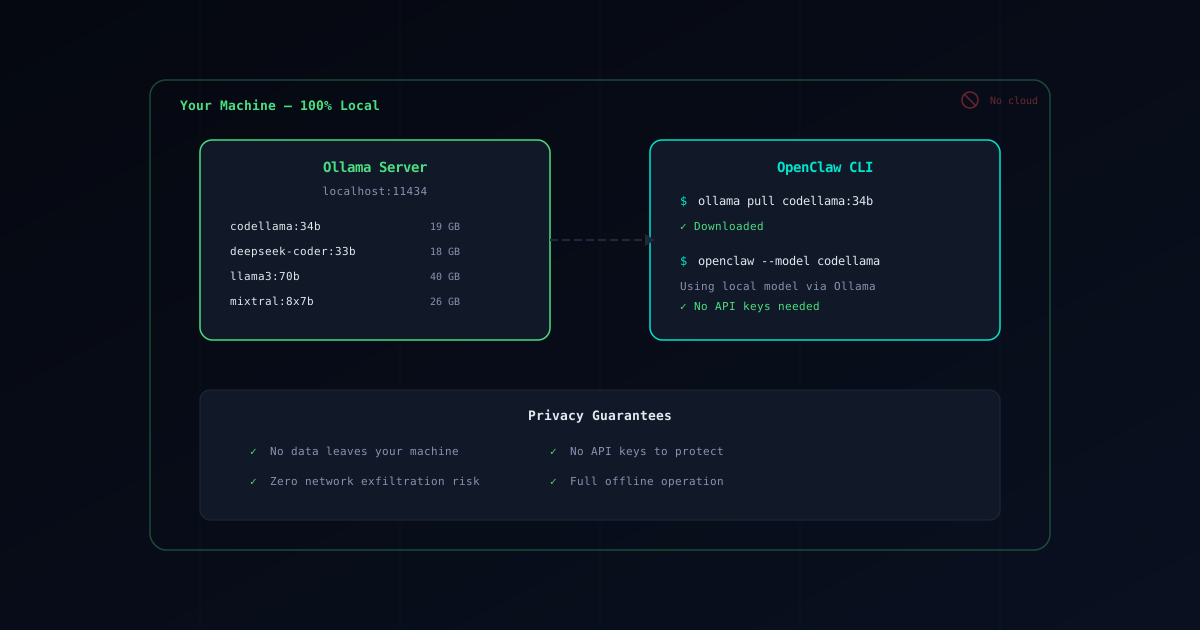
Ollama lets you run large language models locally on your own hardware. When paired with OpenClaw, you get a fully private AI coding assistant — no API keys, no cloud services, no data leaving your machine.
This guide covers installing Ollama, choosing the right model, configuring OpenClaw, and optimizing performance.
Why Use Ollama with OpenClaw?
Running models locally offers several advantages:
- Zero API costs — No per-token billing, unlimited usage
- Full privacy — No data leaves your machine, ever
- No API key exposure — Eliminates the most common credential theft vector
- Works offline — Code with AI assistance without internet access
- Compliance — Meets data residency requirements for sensitive projects
The trade-off is that local models require significant hardware and are generally slower than cloud APIs. But for many developers, the privacy and cost benefits are worth it.
Install Ollama
macOS
# Download from ollama.com or use Homebrew
brew install ollama
Linux
curl -fsSL https://ollama.com/install.sh | shVerify Installation
ollama --versionStart the Ollama server (it runs in the background):
ollama serveRecommended Models for Coding
Not all models are created equal for coding tasks. Here are our recommendations:
Best Performance
| Model | Size | VRAM Required | Best For |
|---|---|---|---|
llama3:70b | 40 GB | 48 GB+ | Best overall quality |
deepseek-coder:33b | 18 GB | 24 GB+ | Code generation, completion |
mixtral:8x7b | 26 GB | 32 GB+ | Complex reasoning, multi-step tasks |
codellama:34b | 19 GB | 24 GB+ | General coding, refactoring |
Good Balance (16 GB VRAM)
| Model | Size | VRAM Required | Best For |
|---|---|---|---|
codellama:13b | 7 GB | 10 GB+ | Solid coding on moderate hardware |
deepseek-coder:6.7b | 4 GB | 8 GB+ | Fast code completion |
llama3:8b | 4.7 GB | 8 GB+ | General tasks, explanations |
Lightweight (8 GB VRAM or CPU-only)
| Model | Size | VRAM Required | Best For |
|---|---|---|---|
codellama:7b | 4 GB | 6 GB+ | Basic coding on limited hardware |
deepseek-coder:1.3b | 0.8 GB | 2 GB+ | Quick completions, low resources |
Download a Model
# Download the recommended general-purpose model
ollama pull codellama:34b

# Or a lighter alternative
ollama pull codellama:13b

# Verify the model works
ollama run codellama:34b "Write a hello world in Python"
Configure OpenClaw for Ollama
Basic Configuration
Tell OpenClaw to use your local Ollama instance:
# Set the provider to Ollama
export OPENCLAW_PROVIDER=ollama

# Set the model (must match what you downloaded)
export OPENCLAW_MODEL=codellama:34b

# Ollama runs on localhost by default
export OLLAMA_HOST=http://localhost:11434
Gateway Configuration
If you use the OpenClaw Gateway, configure Ollama as a provider:
{
  "providers": {
    "ollama": {
      "type": "ollama",
      "baseUrl": "http://localhost:11434",
      "models": ["codellama:34b", "deepseek-coder:33b"],
      "default": true
    }
  }
}
See our Gateway Setup Guide for complete Gateway configuration.
Persist Configuration
Add settings to your shell profile:
# Add to ~/.bashrc or ~/.zshrc
export OPENCLAW_PROVIDER=ollama
export OPENCLAW_MODEL=codellama:34b
export OLLAMA_HOST=http://localhost:11434
Test the Connection
# Verify Ollama is running
curl http://localhost:11434/api/tags

# Run OpenClaw with Ollama
openclaw "explain what this command does: find . -name '*.ts' -exec wc -l {} +"
Performance Tuning
GPU Acceleration
Ollama automatically uses your GPU if available. Verify GPU detection:
# Check GPU usage
ollama ps
For NVIDIA GPUs, ensure you have the latest drivers:
nvidia-smiFor Apple Silicon (M1/M2/M3), Metal acceleration is automatic — no configuration needed.
Context Window
Larger context windows use more memory. If you’re running low on RAM:
# Reduce context window (default is usually 4096)
export OLLAMA_NUM_CTX=2048
For large codebases that need more context:
# Increase context window (needs more RAM/VRAM)
export OLLAMA_NUM_CTX=8192
Parallel Requests
If you’re running multiple OpenClaw instances:
# Allow multiple concurrent requests
export OLLAMA_NUM_PARALLEL=2
CPU-Only Mode
If you don’t have a GPU, Ollama falls back to CPU. Optimize with:
# Use a smaller model for reasonable CPU performance
ollama pull codellama:7b

# Set thread count (match your CPU cores)
export OLLAMA_NUM_THREAD=8
CPU-only performance is significantly slower than GPU. For the best experience on CPU, use models 7B parameters or smaller.
Security Benefits of Local Models
Running models locally eliminates several attack vectors that affect cloud-based setups:
No API Keys to Steal
The most common OpenClaw security issue is API key theft through malicious skills. With Ollama, there are no API keys — nothing to steal.
No Network Exfiltration
Even if a malicious skill attempts to send data to an external server, combining Ollama with Sandbox Mode makes exfiltration impossible:
For maximum security, combine Ollama with OpenClaw’s sandbox mode (Docker-based tool isolation) and keep sandbox networking disabled by default. See Sandbox Setup.
Data Stays Local
Your code, prompts, and AI responses never leave your machine. This is especially important for:
- Proprietary codebases
- Projects with compliance requirements (HIPAA, GDPR)
- Government or defense contractors
- Competitive code you don’t want cloud providers to see
Combined Security Setup
For the strongest security posture, combine Ollama with other OpenClaw security features:
- Ollama — Eliminates API key exposure
- Sandbox Mode — Isolates execution environment
- Verified Skills — Only use audited skills
- Credential Protection — Protect any remaining credentials
OpenClaw + Ollama Limitations
Be aware of these constraints when using Ollama:
Quality Gap
Local models are generally less capable than cloud models like Claude 3.5 Sonnet or GPT-4o. For complex coding tasks — large refactors, intricate debugging, architectural decisions — cloud models still have an edge.
Hardware Requirements
Running capable models requires significant resources:
- Minimum: 16 GB RAM, 8 GB VRAM for 13B models
- Recommended: 32 GB RAM, 24 GB VRAM for 34B models
- Ideal: 64 GB RAM, 48 GB VRAM for 70B models
Speed
Local inference is slower than cloud APIs on most hardware. Expect:
- GPU (24 GB VRAM, 34B model): ~15-30 tokens/second
- GPU (8 GB VRAM, 7B model): ~30-60 tokens/second
- CPU-only (7B model): ~3-8 tokens/second
Model Updates
You need to manually pull model updates:
# Check for updates
ollama pull codellama:34b
Troubleshoot OpenClaw + Ollama Issues
”Error: model not found”
The model isn’t downloaded yet:
# List available models
ollama list

# Download the model
ollama pull codellama:34b
“Error: connection refused”
Ollama server isn’t running:
# Start the server
ollama serve

# Check if it's running
curl http://localhost:11434/api/tags
Out of Memory
The model is too large for your hardware:
# Switch to a smaller model
ollama pull codellama:7b
export OPENCLAW_MODEL=codellama:7b
Slow Performance
- Ensure GPU is being used:
ollama ps - Reduce context window:
export OLLAMA_NUM_CTX=2048 - Use a smaller model
- Close other GPU-intensive applications
Next Steps After Ollama Setup
- Installation Guide — Install OpenClaw itself
- Free Models Setup — Run OpenClaw for $0 with Kimi K2.5, Qwen, and other free cloud models
- Gateway Setup — Configure Ollama as a Gateway provider
- Sandbox Setup — Add execution isolation for maximum security
- Security Guide — Understand the full threat landscape
- Verified Skills — Find safe, audited skills to extend OpenClaw