OpenClaw Gateway: Setup & Security Guide
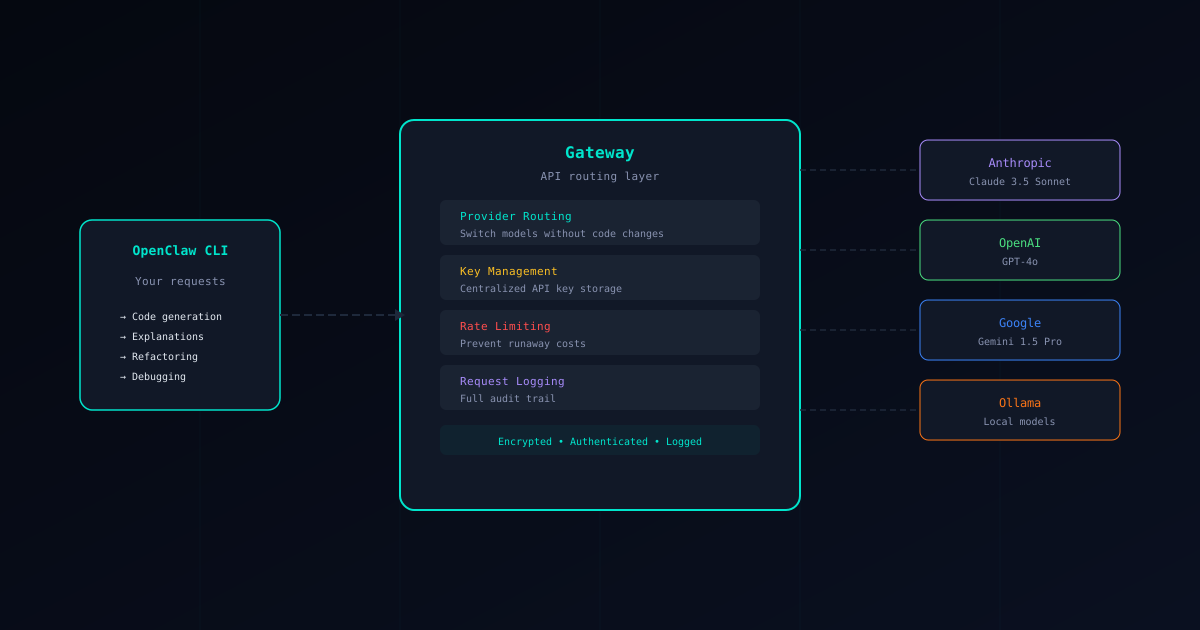
The OpenClaw Gateway is the API routing layer that sits between your clients and LLM providers. It centralizes key management, enables provider switching, adds rate limiting, and provides a security boundary for all AI requests.
This guide covers setting up the Gateway, configuring providers, hardening security, and monitoring usage.
What is the OpenClaw Gateway?
Without the Gateway, each OpenClaw client connects directly to an LLM provider using its own API key. Every developer on your team needs a copy of the key, every machine stores it in a config file, and there’s no central control over usage or costs.
Client → Anthropic API (API key in client config)
Client → OpenAI API (another key in client config)
The Gateway centralizes this into a single access point:
Client → Gateway → Anthropic API
                 → OpenAI API
                 → Ollama (local)
This gives you:
- Centralized key management — API keys live only on the Gateway server, not on every developer’s machine
- Provider flexibility — Switch models or providers without reconfiguring any client
- Rate limiting — Prevent runaway costs with per-client and global limits
- Audit logging — Full record of who requested what and when
- Access control — Restrict who can use which models and how much
OpenClaw Gateway Basic Setup
1) Recommended: onboarding + service
openclaw onboard --install-daemon
openclaw gateway status
2) Foreground / dev
openclaw gateway --port 18789 --verbose --allow-unconfigured3) Connect to the Gateway
- Local Dashboard (Control UI):
http://127.0.0.1:18789/ - RPC/WebSocket URL:
ws://127.0.0.1:18789
If you expose the Gateway beyond loopback (LAN/tailnet), use token auth.
Config lives in: ~/.openclaw/openclaw.json.
Adding Providers
Providers are the LLM backends that the Gateway routes requests to.
Configure providers during onboarding, or in ~/.openclaw/openclaw.json (see the official configuration reference). Treat the JSON blocks below as illustrative — prefer the official docs as the source of truth for exact keys.
Anthropic (Claude)
Anthropic’s Claude models are recommended for coding tasks. The apiKey field accepts your Anthropic API key, and models lists which models this provider makes available. Setting "default": true means requests without a specific model preference will use this provider.
{
  "providers": {
    "anthropic": {
      "type": "anthropic",
      "apiKey": "sk-ant-api03-...",
      "models": [
        "claude-3-5-sonnet-20241022",
        "claude-3-opus-20240229"
      ],
      "default": true
    }
  }
}
OpenAI (GPT-4)
The same structure works for OpenAI. Replace the key and list the models you want to expose through the Gateway.
{
  "providers": {
    "openai": {
      "type": "openai",
      "apiKey": "sk-...",
      "models": [
        "gpt-4o",
        "gpt-4-turbo"
      ]
    }
  }
}
Google (Gemini)
Google’s Gemini models use the same provider pattern. Use your Google AI Studio API key.
{
  "providers": {
    "google": {
      "type": "google",
      "apiKey": "AIza...",
      "models": [
        "gemini-1.5-pro",
        "gemini-ultra"
      ]
    }
  }
}
Ollama (Local Models)
Ollama runs models locally on your hardware, so no API key is needed — just point the Gateway to where Ollama is running. The baseUrl defaults to http://localhost:11434 if Ollama is on the same machine.
{
  "providers": {
    "ollama": {
      "type": "ollama",
      "baseUrl": "http://localhost:11434",
      "models": [
        "codellama:34b",
        "deepseek-coder:33b"
      ]
    }
  }
}
See our Ollama Setup Guide for installing Ollama and choosing the right model for your hardware.
OpenRouter (100+ Models)
OpenRouter gives you access to models from multiple providers through a single API. Configure it as an openai-compatible provider with the OpenRouter base URL. Model names follow the provider/model format.
{
  "providers": {
    "openrouter": {
      "type": "openai-compatible",
      "apiKey": "sk-or-...",
      "baseUrl": "https://openrouter.ai/api/v1",
      "models": [
        "anthropic/claude-3.5-sonnet",
        "openai/gpt-4o",
        "google/gemini-pro-1.5"
      ]
    }
  }
}
Combining providers: You can add all of these to the same
gateway.json— they coexist under separate keys in theprovidersobject. The next section explains how to control which provider handles each request.
Multi-Provider Strategies
When you configure multiple providers, you need routing rules to decide which provider handles each request. The Gateway supports three strategies: fallback chains, cost-based routing, and environment-based routing.
Fallback Chain
A fallback chain tries providers in order. If the first provider fails (rate limit, outage, timeout), the Gateway automatically routes the request to the next one in the chain. This gives you high availability without any client-side logic.
{
  "routing": {
    "strategy": "fallback",
    "chain": ["anthropic", "openai", "ollama"]
  }
}
In this example: Anthropic is tried first. If it returns an error, the request goes to OpenAI. If OpenAI also fails, the local Ollama instance handles it as a last resort.
Cost Optimization
Route different types of requests to different models based on complexity. Simple, short tasks go to cheaper (or free local) models, while complex tasks use the most capable cloud model.
{
  "routing": {
    "rules": [
      {
        "match": { "maxTokens": 500 },
        "provider": "ollama",
        "model": "codellama:7b"
      },
      {
        "match": { "maxTokens": 4000 },
        "provider": "anthropic",
        "model": "claude-3-5-sonnet-20241022"
      },
      {
        "match": { "default": true },
        "provider": "anthropic",
        "model": "claude-3-opus-20240229"
      }
    ]
  }
}
Rules are evaluated top to bottom. The first matching rule wins. The "default": true rule at the bottom catches everything else.
Cloud + Local Hybrid
Use tags to route requests based on environment. Development work goes to your local Ollama (free, private), while production pipelines use cloud models for higher quality.
{
  "routing": {
    "rules": [
      {
        "match": { "tag": "development" },
        "provider": "ollama"
      },
      {
        "match": { "tag": "production" },
        "provider": "anthropic"
      }
    ]
  }
}
Clients set the tag via the OPENCLAW_TAG environment variable or per-request header.
Security Hardening
The Gateway is a critical security boundary — it holds your API keys and processes all AI traffic. Treat it like any production service: lock down access, encrypt connections, and limit blast radius.
API Key Protection
Never store API keys as plain text in config files on production systems. Instead, use ${VARIABLE} syntax — the Gateway resolves these from environment variables at startup.
{
  "providers": {
    "anthropic": {
      "type": "anthropic",
      "apiKey": "${ANTHROPIC_API_KEY}",
      "models": ["claude-3-5-sonnet-20241022"]
    }
  }
}
Set the actual key in your environment (e.g., systemd Environment= directive, Docker --env, or a secrets manager). This way the config file can be version-controlled safely.
For more credential protection strategies, see our Credential Protection Guide.
Rate Limiting
Rate limiting protects you from two things: runaway costs from bugs or abuse, and API provider rate limits that could block your entire team. Set both global limits (for the entire Gateway) and per-client limits.
{
  "rateLimiting": {
    "global": {
      "requestsPerMinute": 60,
      "tokensPerDay": 1000000
    },
    "perClient": {
      "requestsPerMinute": 10,
      "tokensPerHour": 50000
    }
  }
}requestsPerMinute— Maximum number of API calls. Prevents request floods.tokensPerDay/tokensPerHour— Maximum token usage. Prevents unexpected cost spikes.
When a limit is hit, the Gateway returns a 429 Too Many Requests response with a Retry-After header.
Access Control
Require authentication for every request to the Gateway. Each client gets a unique bearer token with specific permissions — which models they can use and their individual rate limits.
{
  "auth": {
    "type": "bearer",
    "tokens": [
      {
        "name": "developer-1",
        "token": "${GATEWAY_TOKEN_DEV1}",
        "allowedModels": ["claude-3-5-sonnet-20241022"],
        "rateLimit": { "requestsPerMinute": 20 }
      },
      {
        "name": "ci-pipeline",
        "token": "${GATEWAY_TOKEN_CI}",
        "allowedModels": ["codellama:34b"],
        "rateLimit": { "requestsPerMinute": 5 }
      }
    ]
  }
}
This setup means: developer-1 can only use Claude Sonnet with up to 20 requests/minute, while the CI pipeline can only use the local CodeLlama model with 5 requests/minute. Any unauthorized request is rejected with 401.
IP Whitelisting
Restrict Gateway access to known IP addresses or CIDR ranges. This is especially important if the Gateway is exposed beyond localhost.
{
  "security": {
    "allowedIPs": [
      "127.0.0.1",
      "10.0.0.0/8",
      "192.168.1.0/24"
    ]
  }
}
Requests from IPs outside these ranges are rejected immediately, before any authentication check.
TLS Encryption
If the Gateway is accessible over the network (not just localhost), always use TLS to encrypt traffic. Without it, API keys and prompts are sent in plain text.
{
  "tls": {
    "enabled": true,
    "cert": "/etc/openclaw/cert.pem",
    "key": "/etc/openclaw/key.pem"
  }
}
Use Let’s Encrypt for free certificates, or your organization’s certificate authority.
Monitoring
Request Logging
Enable request logging to maintain an audit trail. The Gateway logs each request with timestamp, client identity, model used, and token count.
{
  "logging": {
    "level": "info",
    "requests": true,
    "logFile": "/var/log/openclaw/gateway.log",
    "includePrompts": false
  }
}
Important: Keep includePrompts set to false in production. Logging full prompts creates a security risk — if log files are compromised, an attacker gets access to all your AI interactions.
Usage Tracking
For day‑1 operations, the most reliable sources of truth are:
- the Control UI (dashboard) connected to your Gateway
- your provider dashboards (Anthropic/OpenAI/etc.) for billing
- Gateway logs (keep prompt logging off in production)
Health Checks
# Service view + quick probe
openclaw gateway status

# Explicit health probe (RPC)
openclaw gateway health --url ws://127.0.0.1:18789

# Discover/probe all reachable gateways (debug everything)
openclaw gateway probe
For systemd deployments, your service should run the Gateway in the foreground, e.g.:
[Service]
ExecStart=/usr/local/bin/openclaw gateway --port 18789
Common Configurations
Below are complete, copy-paste-ready configurations for common scenarios.
Solo Developer
A simple setup with one cloud provider and an optional local fallback. The fallback chain means you can keep working even if the Anthropic API is down.
{
  "providers": {
    "anthropic": {
      "type": "anthropic",
      "apiKey": "${ANTHROPIC_API_KEY}",
      "models": ["claude-3-5-sonnet-20241022"],
      "default": true
    },
    "ollama": {
      "type": "ollama",
      "baseUrl": "http://localhost:11434",
      "models": ["codellama:13b"]
    }
  },
  "routing": {
    "strategy": "fallback",
    "chain": ["anthropic", "ollama"]
  },
  "rateLimiting": {
    "global": {
      "tokensPerDay": 500000
    }
  }
}
Small Team
Shared Gateway with per-developer tokens so you can track who’s using what. Each developer gets their own rate limit, and all requests are logged for audit.
{
  "providers": {
    "anthropic": {
      "type": "anthropic",
      "apiKey": "${ANTHROPIC_API_KEY}",
      "models": ["claude-3-5-sonnet-20241022"],
      "default": true
    }
  },
  "auth": {
    "type": "bearer",
    "tokens": [
      {
        "name": "alice",
        "token": "${TOKEN_ALICE}",
        "rateLimit": { "requestsPerMinute": 15, "tokensPerHour": 100000 }
      },
      {
        "name": "bob",
        "token": "${TOKEN_BOB}",
        "rateLimit": { "requestsPerMinute": 15, "tokensPerHour": 100000 }
      }
    ]
  },
  "rateLimiting": {
    "global": {
      "tokensPerDay": 2000000
    }
  },
  "logging": {
    "requests": true,
    "logFile": "/var/log/openclaw/gateway.log"
  }
}
CI/CD Pipeline
Minimal setup for automated code review and test generation. Uses local Ollama to avoid API key management and cloud costs in CI. The Gateway is locked down to localhost only.
{
  "providers": {
    "ollama": {
      "type": "ollama",
      "baseUrl": "http://localhost:11434",
      "models": ["codellama:34b"],
      "default": true
    }
  },
  "rateLimiting": {
    "global": {
      "requestsPerMinute": 10
    }
  },
  "security": {
    "allowedIPs": ["127.0.0.1"]
  }
}
Troubleshoot OpenClaw Gateway Issues
”Connection refused”
The Gateway isn’t reachable.
# Check the Gateway service + probe (recommended)
openclaw gateway status

# If you’re running it manually, start a foreground Gateway:
openclaw gateway --port 18789 --verbose --allow-unconfigured
If you changed the port, make sure your clients / Control UI point to the right WebSocket URL (example: ws://127.0.0.1:18789).
”Provider unavailable”
Most often: wrong auth/profile, blocked network egress, or provider outage.
openclaw gateway probeThen verify your provider/auth settings in ~/.openclaw/openclaw.json and restart the Gateway.
”Rate limit exceeded”
Treat this as a configuration issue: reduce automation cadence or raise limits.
Update the relevant limits in ~/.openclaw/openclaw.json, then:
openclaw gateway restartPort Already in Use
Another process is already using the Gateway’s port. Find the process and either stop it or use a different port:
# Start on a different port
openclaw gateway --port 19001 --verbose --allow-unconfigured

# Or force-kill the existing listener on that port
openclaw gateway --port 18789 --force --verbose --allow-unconfigured
Next Steps After Gateway Setup
- Security Guide — Understand the full OpenClaw threat landscape
- Credential Protection — Advanced strategies for API key security
- Ollama Setup — Configure local models for the Gateway
- Sandbox Setup — Isolate OpenClaw execution
- Verified Skills — Find audited skills for your setup